What do you need before you add the widget?
You need an iPhone with iOS 17 or later, Steady Deen, and prayer times set up in the app, because the widget shows the times the app has calculated.
In Steady Deen, open Settings › Prayer times and choose “Use my location” or “Choose a city”. See how prayer times are calculated.
What are the steps for adding the widget?
You customize the Lock Screen and add Steady Deen’s Prayer times widget from the widget list. These steps are for iOS 26 and iOS 27, and they add the rectangle or the circle. What differs on iOS 17 and iOS 18, and the single line by the date, follow the list.
- Open Steady Deen and make sure prayer times are set up.
- Touch and hold the Lock Screen until the Customize button appears. If nothing appears, touch and hold again, then enter your passcode.
- If you have more than one Lock Screen, swipe to the one you want to change.
- Tap Customize, then tap Add Widgets. If that Lock Screen already has widgets, you can tap them instead of Add Widgets.
- If there is no room for another widget, tap the Remove button on one you already have.
- Find Steady Deen in the list, then tap or drag the Prayer times rectangle or circle.
- Swipe down from the widget list, then tap Done.
On iOS 17 and iOS 18, step 4 has one more tap: after Customize, tap Lock Screen, then Add Widgets. In Apple’s guide for iOS 27, Done can also be an icon.
These steps do not cover the single line. Apple’s guide for iOS 17 and iOS 18 names the date as another place to tap when you add widgets, and that is where the single line goes: tap the date instead of Add Widgets. Apple’s guide for iOS 26 and iOS 27 does not describe adding a widget by the date, so this page gives no steps for the single line on those versions.
Steps 2 to 7 follow two Apple pages: the guide Create a custom iPhone Lock Screen, where you can choose your iOS version, and the article How to add and edit widgets on your iPhone.
What does each Lock Screen form of the widget show?
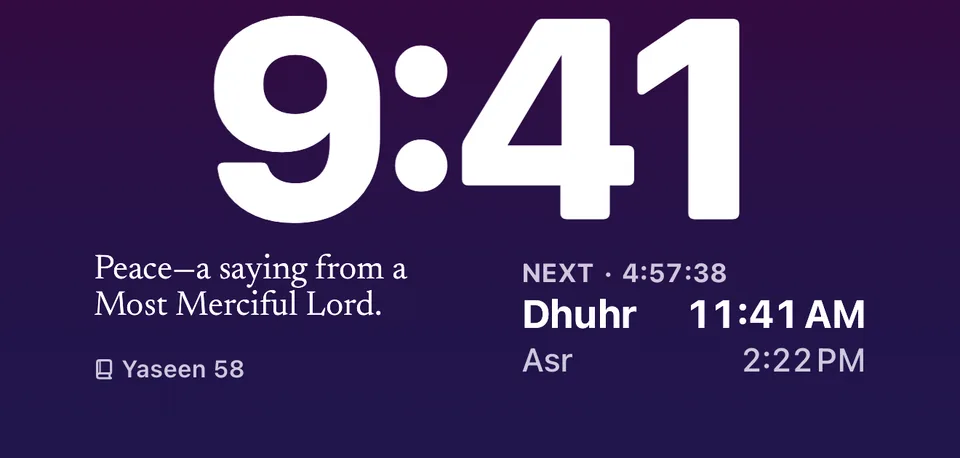
Each of the three Lock Screen forms shows the next prayer and its time.
| Form | What it shows |
|---|---|
| Rectangle | “Next” with a live countdown, the next prayer and its time, then the one after it |
| Circle | The next prayer’s name and time, in a ring that fills as the time approaches |
| Single line by the date | The next prayer’s name and time |
Sunrise counts as one of the times, and an estimated time is marked ≈. Tapping the widget opens the app’s Prayer times screen. The medium Home Screen widget shows the day’s six times.
Can you add the Hijri date and your dhikr count too?
Yes, with the same steps. Hijri is a circle with today’s Hijri date. It reads the date from the same saved list as Prayer times, so it shows a dash until prayer times are set up. Dhikr is a circle or a rectangle with your dhikr count and, if you set a target, your progress toward it. For a verse, see how to put a Quran verse on your Lock Screen.
How long does the widget work without opening the app?
About 60 days. Each time you open Steady Deen, it saves about 60 days of times on your phone. The widget reads that list and moves to the next prayer by itself, but it cannot renew the list. When the list runs out, the widget shows no old time: the rectangle says “Prayer times are out of date” and “Open the app”, and the circle and the single line also ask you to open the app. Opening Steady Deen renews the list.
What happens to the widget after you travel?
The widget keeps showing the times of the place saved in the app, in that place’s time zone, until you open Steady Deen. The app never uses your location in the background, and the widget only reads what the app saved. If you set up with “Use my location”, open the app when you arrive: it updates the place, unless you turned off “Update when the app opens”. If you chose a city, choose the new one under Settings › Prayer times.
Why do the widget’s times differ from your mosque’s?
The times are estimates that the app calculates with one method, not an official timetable, so mosques may differ by a few minutes. Under Settings › Prayer times, you can change the method on the “Calculation method” page, use “Match my mosque” or set “Minute adjustments”, and the widget follows. See prayer time calculation methods and methods and sources.
Which method or time to follow is a question for your local mosque or a qualified scholar you trust.
What if the widget shows “Tap to set up” or the wrong times?
Start in Steady Deen, because the widget only shows what the app saved. Match what the widget shows to one of these.
- “Tap to set up”, a dash in the circle, or only “Prayer times” in the single line. Prayer times are not set up. Tap the widget to open Steady Deen, then finish the setup. If you have not opened Steady Deen yet, these words appear in English, whatever language your phone uses.
- “Open the app”, or a dash in the Hijri circle long after you last opened the app. The saved times have run out. Open Steady Deen once.
- Times for another place. Open the app to update your place, or choose your city again.
- Still wrong or empty. Contact support.
What does the Lock Screen widget not do?
As of November 2026 (version 1.1), the widget does not do the following.
- It plays no adhan, makes no sound and sends no alert. Prayer alerts are a separate setting in the app.
- It is not interactive and has no settings of its own: you can’t give one widget a different city or method.
What data does the Prayer times widget use?
It reads a small, unencrypted summary that the app saves on your phone, and it doesn’t connect to the internet.
The summary holds what widgets show, such as the upcoming times and their time zone; it does not hold your coordinates, city, notes, journal or practice records. The app uses your location only on your device and never sends it to us or anyone else. If anonymous usage statistics are on, they include which kinds and sizes of widget you added, once a day and as a rough count, and which screen opened when you tapped a widget; your location is never sent. See how widgets handle data and location.
Is the Lock Screen Prayer times widget free?
Yes. As of November 2026 (version 1.1), the widget is free in every form, and so are prayer times in the app; neither needs Steady Deen Plus. Steady Deen is free, with an optional subscription (Steady Deen Plus) and optional one-time tips; see what’s free and what Plus adds.