Which widgets does Steady Deen have?
Steady Deen has five widgets. Three go on the Home Screen, and two of those also go on the Lock Screen; two more are made for the Lock Screen only. So the Home Screen widget gallery lists three of them, and the Lock Screen gallery lists four.
| Widget | Where | What it shows |
|---|---|---|
| Verse of the day | Home Screen (small, medium, large) and Lock Screen | A short verse from the Quran, new every day |
| Prayer times | Home Screen (small, medium) and Lock Screen | The next prayer and its time; most forms also show the time left |
| Prayer and verse | Home Screen (medium, large) | The next prayer and the verse of the day |
| Hijri | Lock Screen (circle) | Today’s Hijri date |
| Dhikr | Lock Screen (rectangle, circle) | Your dhikr count and, if you set a target, your progress toward it |
On the Lock Screen, Verse of the day and Prayer times come as a rectangle, a circle or a single line by the date.
What does the Verse of the day widget show?
It shows one verse a day with its surah and verse number, and it changes at midnight on your phone.
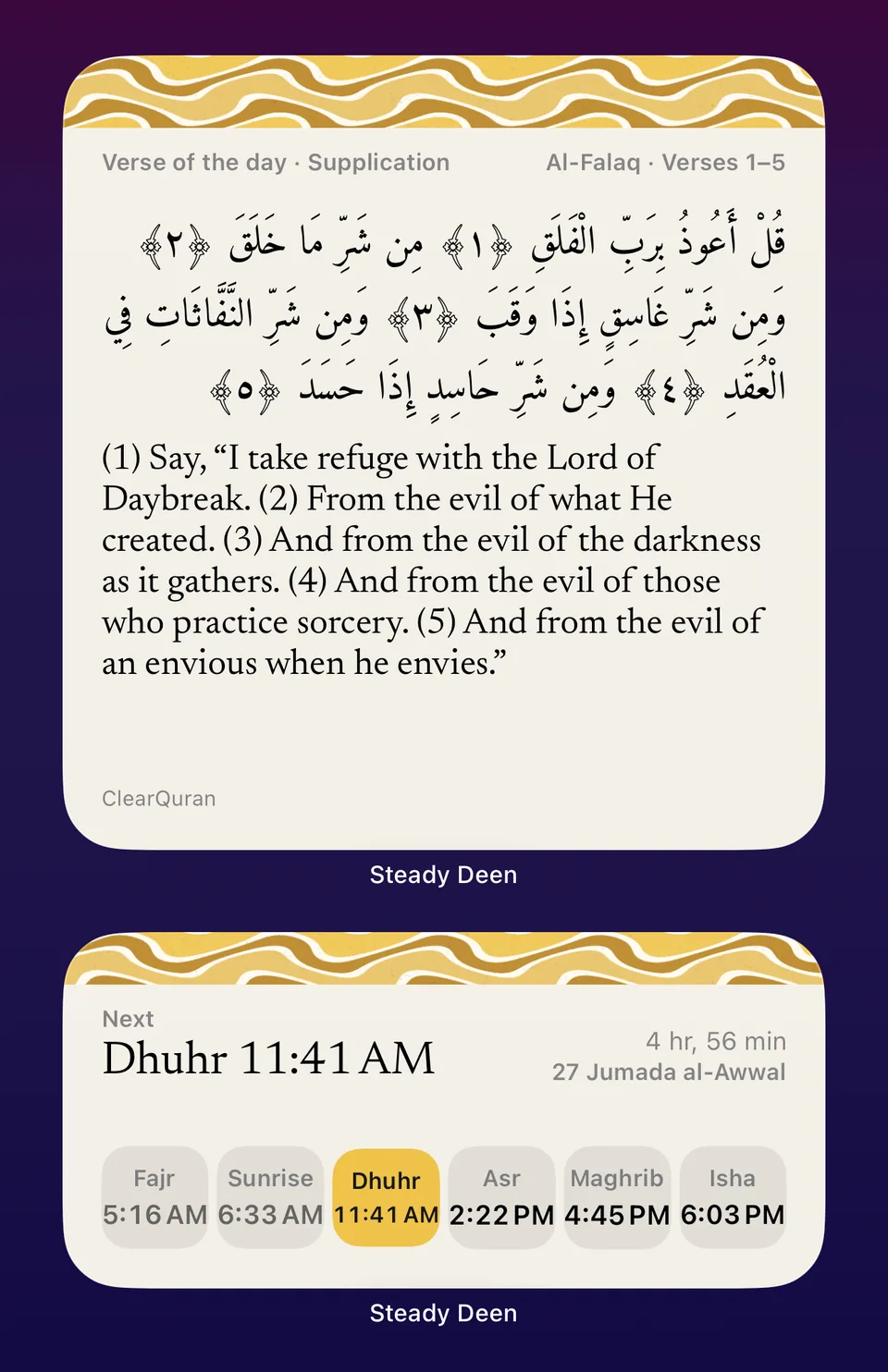
On the Home Screen, every size shows the translation; the medium and large widgets add the Arabic text when it fits, and the large one names the translation it uses. On the Lock Screen, the rectangle shows the translation and the reference, with the Arabic text above them when it fits; the circle and the single line show the reference without the verse text. Tapping a verse widget opens that verse in the app with its full source details.
The translation is never shortened. If the day’s verse is too long for one size, that widget shows another verse that fits.
Each time you open Steady Deen, the app saves the verses for 30 days, starting with that day. The widgets cannot renew this list themselves. Once the 30 days have passed, Verse of the day asks you to open the app once, and no widget shows an old verse.
As of November 2026 (version 1.1), the verses come from a set of 166 verses and short passages built into the app. The Arabic text is from the Tanzil Project, the English translation is ClearQuran and the Turkish translation is by Rowad Translation Center from QuranEnc. Their wording is never changed; the only additions are verse numbers, in the Arabic text and in English passages of several verses. Sources and licenses lists the editions. This set is separate from the daily readings and their review. We chose and checked it before release as its own step.
What does the Prayer times widget show?
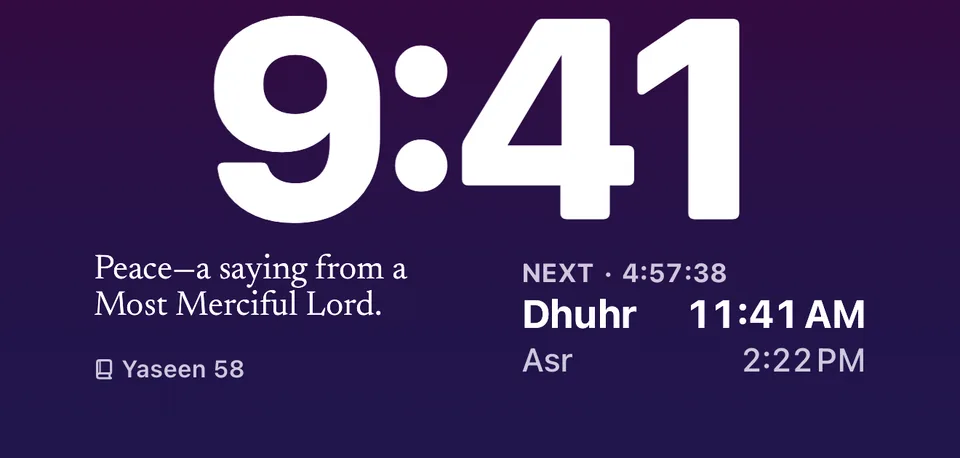
It shows the next prayer and its time, and in most forms the time left. Sunrise counts as one of the times, so the next time shown can be Sunrise. On the Home Screen, both sizes show the name, the clock time and the time left; the medium widget adds the Hijri date and the day’s six times, from Fajr to Isha. On the Lock Screen, the rectangle shows a countdown, the next time and the one after; the circle shows the name and the time inside a ring that fills as the time approaches; the single line shows the name and the time.
Set up prayer times in the app before you add Prayer times, Prayer and verse or Hijri. Until then, Prayer times and Prayer and verse ask you to set them up, and Hijri shows a dash. The app calculates the times on your phone; the widgets read what the app saved and don’t connect to the internet. The app saves about 60 days of times; after that, the widget asks you to open the app instead of showing old times. See how prayer times are calculated.
How do I add a widget to the iPhone Home Screen?
You add it from the iPhone widget gallery. The steps below are for iOS 27; what differs on earlier versions follows the list.
- Open Steady Deen once, so the widget has something to show.
- Touch and hold an empty area of the Home Screen until the apps jiggle.
- Tap the Edit button in the upper-left corner, then tap Add Widget.
- Search for Steady Deen, or scroll to it, and tap it.
- Swipe to the widget and size you want, then tap Add Widget.
- Move the widget where you want it, then tap the Done button.
In Apple’s guide for iOS 27, the Edit and Done buttons are icons. On iOS 18 and iOS 26, they are the words Edit and Done. On iOS 17, there is no Edit step: tap the Add Widget button at the top of the screen. Steady Deen needs iOS 17 or later, so iOS 17 is the earliest version covered here.
Steps 2 to 6 follow two Apple pages: the guide Add, edit, and remove widgets on iPhone, where you can choose your iOS version, and the article How to add and edit widgets on your iPhone.
How do I add a Quran verse or prayer times to the Lock Screen?
You customize the Lock Screen and add the widget there. The steps below are for iOS 26 and iOS 27; what differs on iOS 17 and iOS 18 follows the list.
- Open Steady Deen once.
- Touch and hold the Lock Screen until the Customize button appears, then tap Customize.
- Tap Add Widgets.
- Find Steady Deen, then tap or drag the widget you want.
- Swipe down from the widget list, then tap Done.
On iOS 17 and iOS 18, there is one more tap: after Customize, tap Lock Screen, then Add Widgets. On those versions, you add the single line by tapping the date instead of Add Widgets; Apple’s guide for iOS 26 and iOS 27 does not describe that step. In Apple’s guide for iOS 27, Done can also be an icon.
Steps 2 to 5 follow two Apple pages: the guide Create a custom iPhone Lock Screen, where you can choose your iOS version, and the article How to add and edit widgets on your iPhone.
Verse of the day and Prayer times each have a guide of their own, with fuller steps, what each form shows, how long the widget works before you need to open the app again and what to check if something looks wrong: how to put a Quran verse on your iPhone Lock Screen and how to add prayer times to your iPhone Lock Screen.
Can I change how the widgets look?
Yes, in the app under Settings › Widgets. Home Screen widgets have three themes: Nur (always light), Seher (always dark) and Ebru (marbled). Lock Screen widgets have no theme; iOS draws them in its own style. The “Hide Arabic” switch applies to the Lock Screen only: with it on, the Verse of the day rectangle shows the translation and the reference without the Arabic text. Home Screen widgets don’t change.
What do the widgets not do?
As of November 2026 (version 1.1), the widgets do not do the following.
- They are not interactive: you can’t count dhikr, save a verse or change the verse from a widget. Tapping one opens the app.
- They have no settings of their own: you can’t choose a city, verse or translation for one widget.
- There is no Dhikr widget for the Home Screen and no large Prayer times widget.
- They play no adhan and make no sound.
- They never show your notes, journal entries or practice records, and the summary they read doesn’t hold your coordinates or your city. See how widgets handle data and the journal page.
- There is no Apple Watch app or Live Activity, and Steady Deen is not yet available on Android.
Are the widgets free?
Yes. As of November 2026 (version 1.1), every widget, every size and all three themes are free, and none needs Steady Deen Plus. Steady Deen is free, with an optional subscription (Steady Deen Plus) and optional one-time tips; see what’s free and what Plus adds. If a widget stays empty, open Steady Deen once; if it is still empty, contact support.